
Menu-Admin Panel Correlation
As an Administrator, it's important to understand the relationship between the Browser (where the pages menu is) and the Admin Panel.
The Admin Panel is where you can build and manage your Decision (i.e engagement project). Each section in the Admin Panel will correspond with a particular configuration you can make on your Decision and the consequent change that can be viewed on the browser.
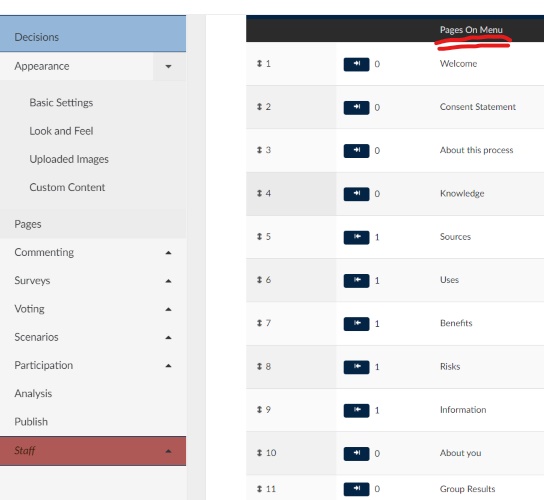
A clear example that demonstrates the browser-admin panel correlation is the pages Menu located on the LHS of the browser and the corresponding Pages Panel on the admin panel. Notice that each of the pages on the Admin Panel are also displayed on the Browser Menu.
Here are 2 images from a previous Decision that display the browser-admin panel correlation:
Browser Menu

Admin Panel
Admin Panel Sections
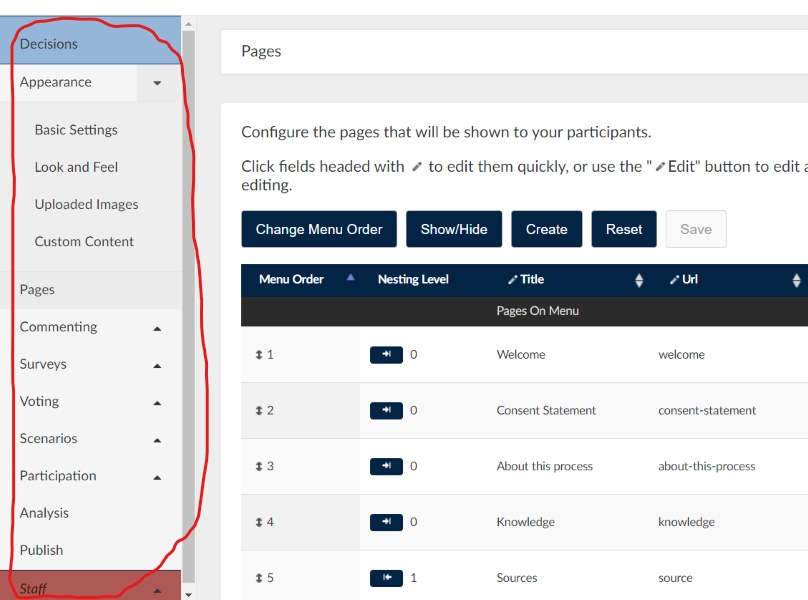
The Admin Panel is divided into sections. Each section plays an important role in making your own customized Ethelo Decision project.
Each Admin Panel section comes with a drop-down menu where you can access the different components of a particular section and make the necessary configuration.
Here is how it looks:
Creating Pages
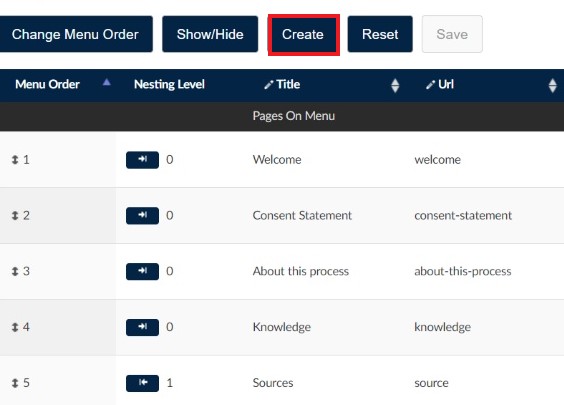
Once you are in the Admin Panel and in the "Pages" section, all you need to do to create a page is to click the "Create" button, then a set of different "Types of Pages" will appear. Select the type of Page you would like to create and proceed to build it by clicking "Next".
Types of Pages

Note that many of the Pages available will require several steps before you can go ahead and create them. You will learn these steps in future lessons.