
There are different types of Authentication available on the platform. This setting will decide how your participants will be able to engage with your decision. It will define if your participants can visit your decision anonymously, would need to sign-up to access the page or it would be by invitation only.
There are things to consider when deciding on this. Is it important that you gather their personal details? Are they the general public, or do you know each of them already?
Basic Permissions
Choose one of the basic permission options, depending on how you are engaging your participants:
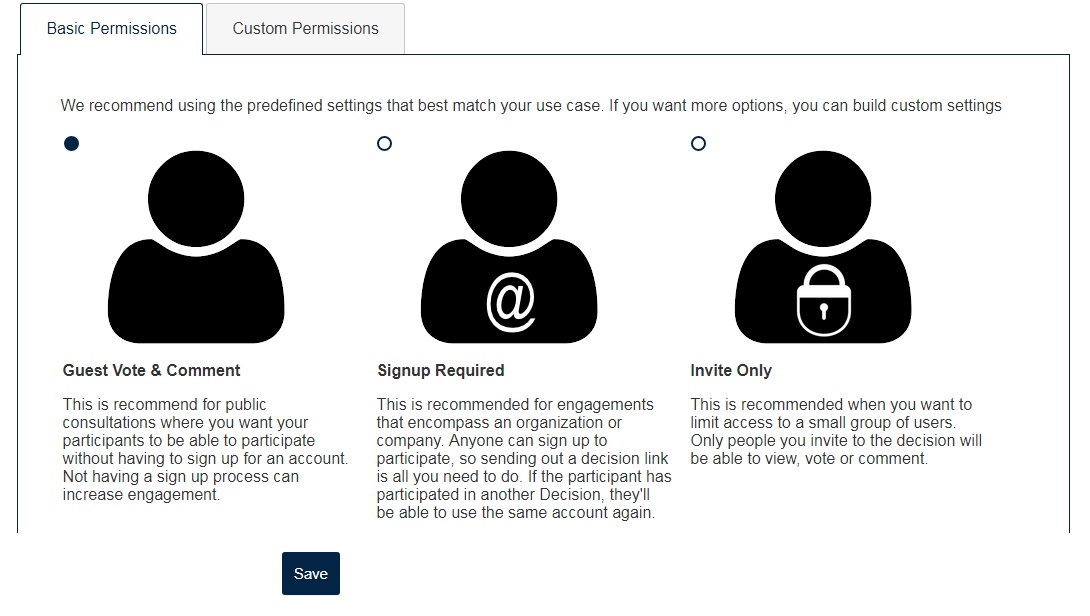
- Guest Vote & Comment
This is recommended for public consultations where you want your participants to be able to participate without having to sign up for an account. Not having a sign-up process can increase engagement.
- Signup Required
This is recommended for engagements that encompass an organization or company. Anyone can sign up to participate, so sending out a decision link is all you need to do. If the participant has participated in a previous Decision, then they will be able to use the same account again.
- Invite Only
This is recommended when you want to limit access to a small group of users. Only people you invite to the decision will be able to view, vote, or comment on it.
- Custom Settings
Custom Permissions Setting is available if you want to set different permissions for your participants on how they can view, vote, comment, or answer survey questions on your decision.
Custom Permissions
You can mix and match different settings on who can view post comments, vote, or fill out survey questions on your decision.
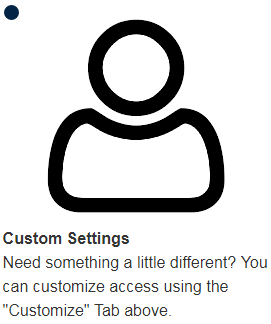
To do this, you must first select the Custom Settings option by selecting the bullet beside the Custom Settings icon, as shown above, and then navigate to the Custom Permissions tab:
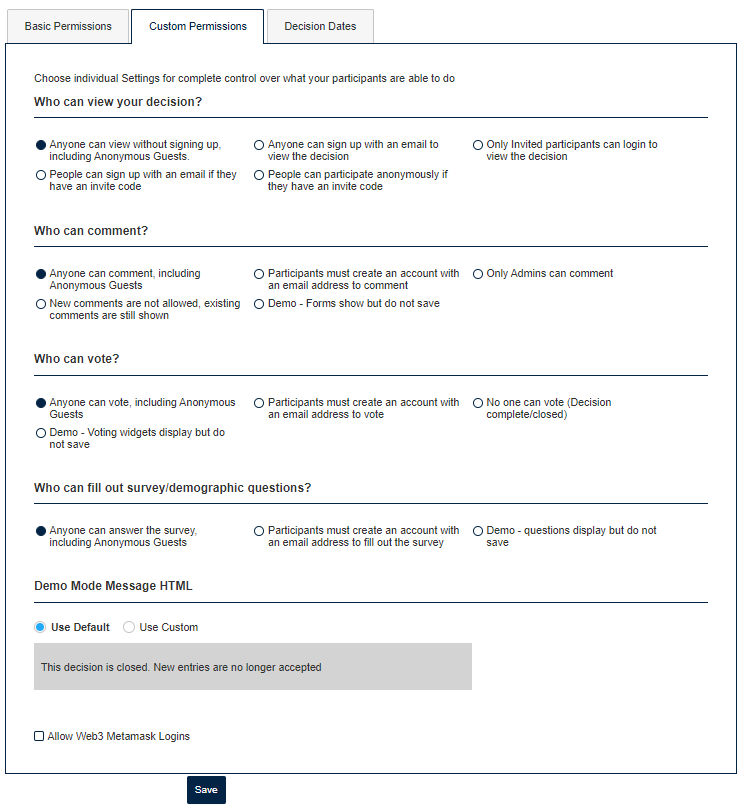
On this Custom Permissions page, you can change the settings for:
- Who can view your decision?
- Who can comment?
- Who can vote?
- Who can fill out survey/demographic questions?
- Demo Mode Message HTML
Click the 'Save' button at the bottom of the page to save your progress