
A Participant is anyone who uses the Ethelo platform. Navigate to the page by clicking ‘Participation’ > ‘Participants’ from the admin panel side menu. From here you can manage your list of Participants and invite people to register for your Ethelo decision.
- Click the ‘Edit’ button to make changes to a specific participant. You can change their assigned role, add more roles or change their influence weight, as shown in the screenshot below. Click the ‘Update’ button to save your changes.
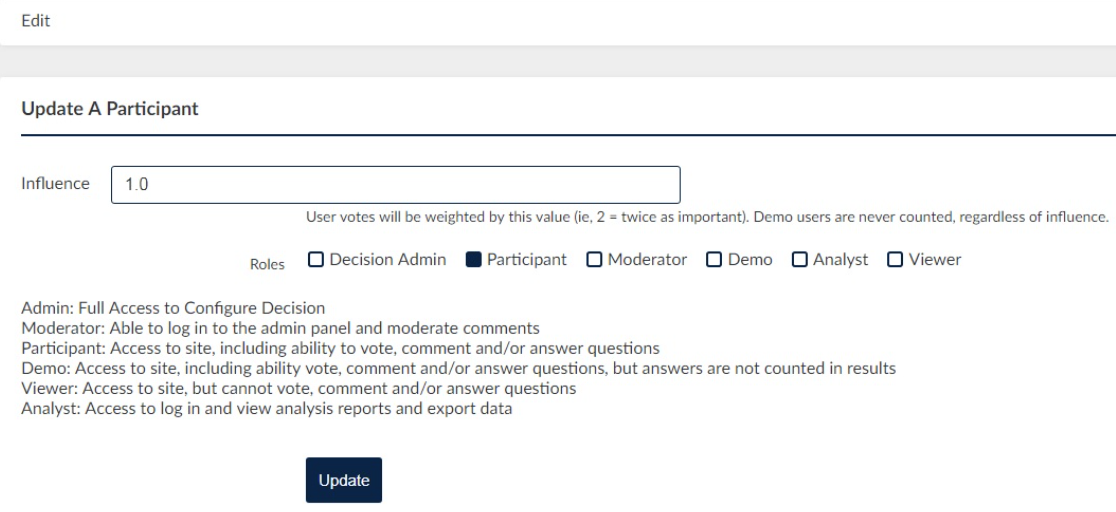
- Clicking the ‘Delete’ button will remove a user from Ethelo and the user’s participation in the decision will be deleted.
- The ‘Send Password Reset’ button is available for registered participants. Clicking this button will send an email to the participant with instructions to reset their password.
Invites
There are two ways to invite participants to the Ethelo platform. One is sending an invitation to multiple participants via ‘Bull Invite’ while the other is sending an invitation to a single participant.
Batch Invite
Clicking the ‘Bulk Invite’ button on the Participants page will redirect you to a page where it would allow you to invite multiple Participants by uploading a file or filling in the text in the text area.
Using a list format you may enter a name followed by an email address. It might look like this:
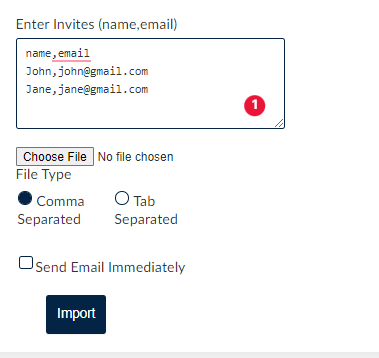
Note: Please do not remove the default guide "name,email" found on the Bulk Invite text area. This might cause an issue with sending your invitations.
Alternately, you can click the ‘Choose File’ button to import a file with the listing of names and email addresses. Select the corresponding file type radio button based on how the name and email address have been delimited.
Clicking the checkbox marked ‘Send Email Immediately’ will immediately send invitation emails to the participants to register for your Ethelo decision. Click the ‘Import’ button to finish the process of inviting multiple participants to your decision.
Invite a Single Participant
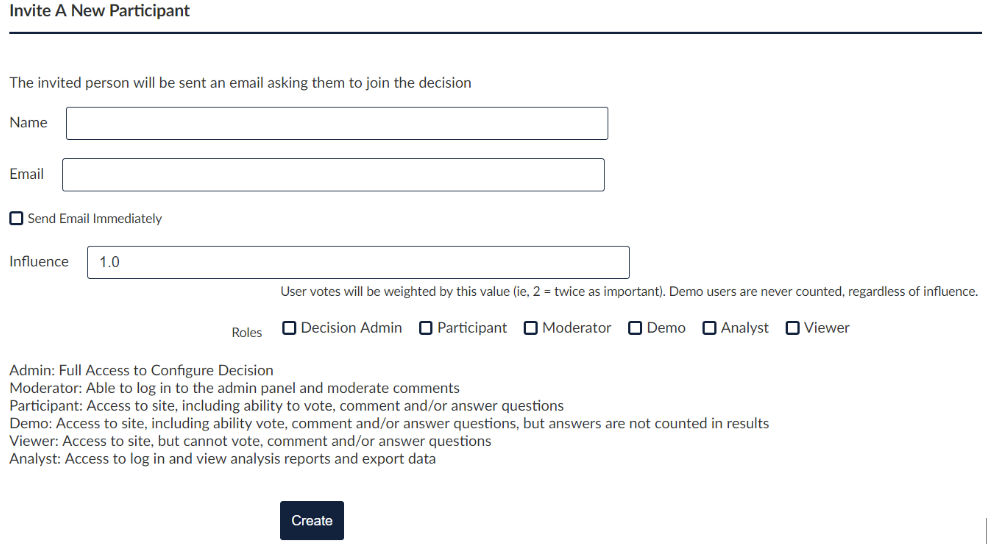
To add a single Participant to a decision, click the ‘Invite’ button found at the top left corner of the page.
-
Name
This will show up in places where the user leaves comments and in internal reporting of the decision results. This information is NOT public unless the user chooses to show their name; for example when they leave comments within a decision.
-
Email
Enter the email address that this user will use to log in to Ethelo. Their invitation to vote will also be sent to this email address.
-
Send Email Immediately
Selecting this checkbox will immediately send an email invitation for the Participant to register. If you do not select this checkbox, an email invitation can be sent at a later date. This can be done by clicking the ‘Send Invite’ button that will show on the main Participants page.
-
Influence
Each Participant has 1 vote of ‘influence’ on a decision. You can increase the ‘influence’ amount if you decide a Participant should have more voting power. Increasing the 'influence' allows for a Participant's choice to have more weight within the decision without requiring them to vote more than once. Setting this number to 2 would be as if the Participant had the voting power of 2 Participants.
-
Roles
These checkboxes can be selected and deselected to match to assign a role or multiple roles to a participant's account.
-
- Decision Admin/Admin has full access to configure the decision.
- Moderators are able to log in to the admin panel and moderate comments on the decision
- A participant has access to the site, including the ability to vote, comment and/or answer questions.
- A demo role is given to participants who can access the site with the ability to vote, comment, and/or answer questions, but answers are not counted in the results.
- The ‘Viewer’ role has access to the site, but cannot vote, comment, and/or answer questions.
- The ‘Analyst’ role has access to log in and view analysis reports and export data.