
Configuring Sidebars
Many types of pages allow a sidebar to be shown on the right-hand side of the main content of that page. Sidebars can contain text/HTML/pictures, or decision information.
Clicking the Sidebars tab when configuring your page allows you to choose from the list of optional sidebars. Depending on the type of page, the options for available Sidebars will be different:
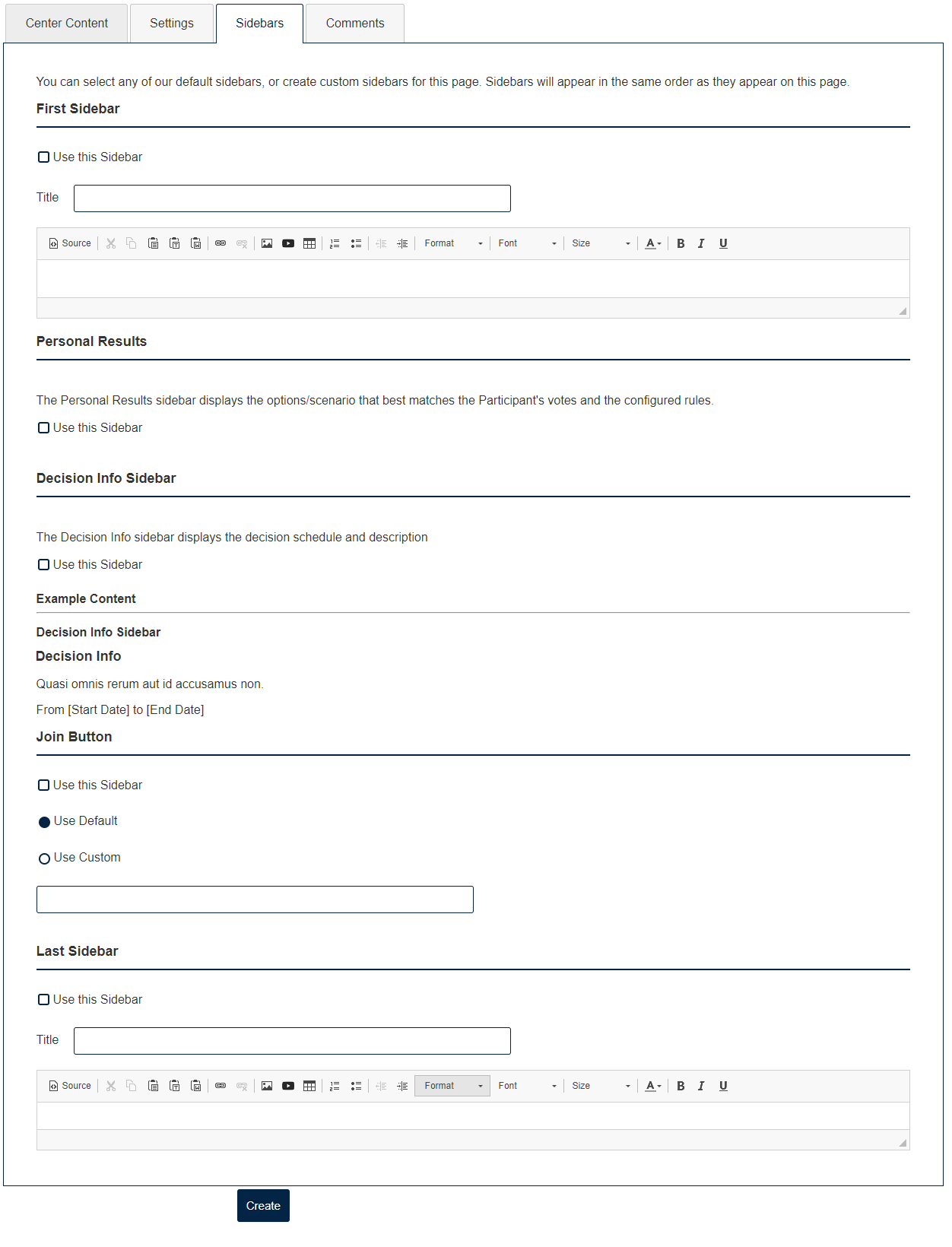
Types of Sidebars
First/Last Sidebar
These are flexible sidebars that allow you to enter HTML or Pictures - see the Content Block Page for more information.
Personal Results Sidebar
When configuring voting pages for participants to view you have the option to include a sidebar with personal results suggestions. The Personal Results sidebar displays the options/scenario that best matches the participant's votes.
You can include a voting summary by following this path and clicking the checkbox to enable the sidebar:
Pages>Edit >Sidebars >Personal Results
Decision Info
The information for the Decision Info sidebar is configured under Appearance >Basic settings.
When configuring pages for participants to view, you have the option to include a Sidebar with a Decision Summary. On these sidebars you can display the decision schedule and description.
You can include a Decision Summary by going to Pages on the left-hand side of the admin panel and clicking on Sidebars. Scroll down to Decision Info Sidebar, then click on Use this bar and decisions info will automatically be displayed on the right-hand side of the web browser.
Commenting
When configuring pages for participants to view you have the option to include a section where participants can get involved by commenting. As an administrator you are able to configure comment settings for this page. You can:
- Choose the location of comment boxes (on the sidebar or bottom of the page)
- Customize headers and instructions
- Use the default prompts or a custom Content Prompt
A normal comment would include a text field in which the user can type in a comment and post it. However, a comment with a title requires the user to enter the title of their comment in a separate text field and the comment itself in another text field. This feature can be very helpful in filtering the comments by topic.
If you would like to edit how the commenting box is displayed you can go to the Pages tab on the left-hand side of the admin panel, choose a particular page and navigate to the Comments section and begin your configuration process.
Info Panels
When configuring pages for participants to view you have the option to include a sidebar with Info Panels. On these sidebars you can display information that might help the participant better understand the page they are viewing or provide background information for the Voting Summary.
You can include an Info Panel by going to Pages on the left-hand side of the admin panel and clicking on Sidebars. Then scroll down to either First Sidebar or Last Sidebar. Click on Use this bar and fill in your content.
Join Button
This button is only visible if a user is not logged in. When enabled it can be clicked to allow a guest to register with Ethelo. You can use a custom name for this button by clicking Use Custom and entering a title.