
After clicking the ‘Create’ button in the admin panel, the Basic Settings page opens. The administrator can configure Decision’s title, subdomain, language, and description on this page.
- Title
- Text that appears beside your decision logo on the top left side of the page.
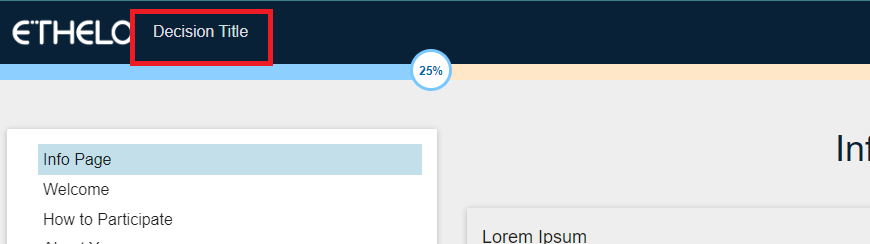
Some good naming conventions:
-
- Keep the project title short but meaningful
- If using dates in the project titles, use the same format everywhere
- Avoid unnecessary repetition and redundancy in titles
- Subdomain
- The subdomain name is added before “.ethelo.net” to complete your decision’s URL. This will be a unique identifier for your project. For example, f you create a project named Mark, it will take the form: https://MARK.ethelo.net.
NOTE: The subdomain name cannot contain spaces or special characters except dashes “-” or period “.”

- Language
The Language setting controls the "system words" that appear on the participant's interface of the Ethelo platform. This includes button labels such as "Back" and “Next.”
Changing the Language does not automatically translate project-specific content, and only the built-in words to the Ethelo platform are changed.
You can have multiple instances of the same project in different languages by following these steps:
-
- Finalize the project in the primary language
- Duplicate the project with a second URL
- Change the language in the second project
- Translate the project-specific content in the second project
- Description
-
- The decision description appears in the right-hand side column of the browser if the “Decision Info Sidebar” is turned on in the “Sidebars” tab for a given page.
More about Sidebars in the Pages section of this guide